
When I first started taking self portraits, I didn’t even know that photo colour grading was a thing.
However, I DO remember admiring works of other photographers at the time and wondering how on earth they made their photos look so professional:
Their images seemed so polished, so editorial, so perfect.
They simply had “that look” that set them apart from amateur photographs.
Later, I realised that one of the secret ingredients for achieving that polished aesthetic is colour grading – a truly essential tool in every photographer’s editing toolbox.
Getting the colour grade of an image right will elevate your work from average to impactful, so it’s worth familiarising yourself with some of the main colour grading tools in Photoshop.
In today’s post, I will quickly explain what photo colour grading is and why the strategic use of colours can really elevate your photography.
We will also look at the best monitor for colour grading and the most effective colour grading tools in Photoshop.
Finally, I will discuss why you should pay attention to colour space in order to avoid your photos looking different online or in print.
(Just so you know: This post contains affiliate links. As an Amazon Associate I earn from qualifying purchases).
First of All…What is Photo Colour Grading?
Colour grading simply means manipulating the colour tone of an image (by adjusting hue and saturation) in order to create a certain mood, aesthetic or effect.
It’s a technique used in photography and cinema, and there are some movies that have become famous for their powerful colour grading, e.g. Sin City, The Grand Budapest Hotel or Blade Runner.
Just like in cinema, colour grading is used in photography to communicate something or to create a certain atmosphere (e.g. using a blue and green colour grade to evoke a sad mood).
It thus becomes a stylistic device which you can really use to your advantage.
Of course, it helps to be familiar with colour psychology, which we will look at in the next section.
Colour Psychology and Why It Matters for Photographers
We all associate certain colours with certain emotions, for example red = love, yellow = positivity/happiness, or blue = sadness.
Of course, this can differ depending on your environment and cultural background, but there are overarching themes that most people will recognise.
Because of these associations, colours have long been a powerful tool used in marketing and advertising to influence people’s perception and ignite specific feelings.
Marketers know that colours can change human mood and behaviour and impact both our bodies and our minds.
As a photographer, it helps to understand at least the basics of colour theory and colour psychology because it will reinforce your visual storytelling and give your photos more depth.
If you’re not yet familiar with the topic, you can read more in this article.
When I work on a picture, I always finish the editing process with several rounds of photo colour grading, depending on which mood or emotion I want to achieve.
I’ve noticed that since I started doing this, my photos look more professional and “pulled-together” than before I got into colour grading.
I will describe my favourite colour grading tools below, but before we get to that, let’s first talk about monitors.
The Best Colour Grading Monitor
People often ask what the best monitor for colour grading is.
I actually don’t think it matters that much what kind of monitor it is.
However, if you can afford it, invest in an Adobe RGB capable monitor as it can display a wider colour gamut – learn more about this in the section “Colour Space”.
What DOES matter, however, is that you calibrate your monitor – especially if you plan on printing your images.
Before I get to the next section…do you love taking portraits? Then check out my free ebook below:
Free Ebook: 50 Portrait Photography Ideas
If you need fresh inspiration for your portrait photography, download my e-book which contains 50 creative ideas and projects for portrait photography.

…but now, back to the blog post!
Why to Calibrate Your Monitor for Editing
Has this happened to you before?
You edit a photo on your monitor at home and then open it on a different PC or on a smartphone, only to find out that the colours look completely different.
If you want to avoid this, you can calibrate your main editing monitor, which means you’re aligning your screen’s colours with the standards set by the RGB (red, green, blue) colour model.
As a result, the colours displayed on your screen will be accurate and consistent – and you won’t have any nasty surprises later on.
How to Calibrate Your Monitor
There are specific devices for monitor calibration.
The process is easy: You simply attach the device to your screen and follow the steps in the corresponding software – it takes about five minutes.
I recommend the Datacolor SpyderPro:
Now let’s finally get to…
The Best Tools for Photo Colour Grading in Photoshop
By its very nature, Photoshop offers a lot of different tools for the same job – there is never only one way to do something.
Therefore, there isn’t only one “colour grading master tool”, either.
Instead, you can choose from a large selection of tools that will perform the same job, but some of them work better for certain purposes than others.
Read on to learn which tools I always include in my process and what jobs I mostly use them for.
(If you prefer a video tutorial, watch my recent video linked below):

One tip – you can access all these tools quickly by clicking on the Adjustment Layer shortcut icon at the bottom right of your layers panel, see below:

1. Selective Color tool
I love this tool! I use it mainly to adjust overall colours in an image. You can find it here:

It’s such a great tool because it lets you adjust each tone individually – you can modify only reds, yellows, greens, and so on:
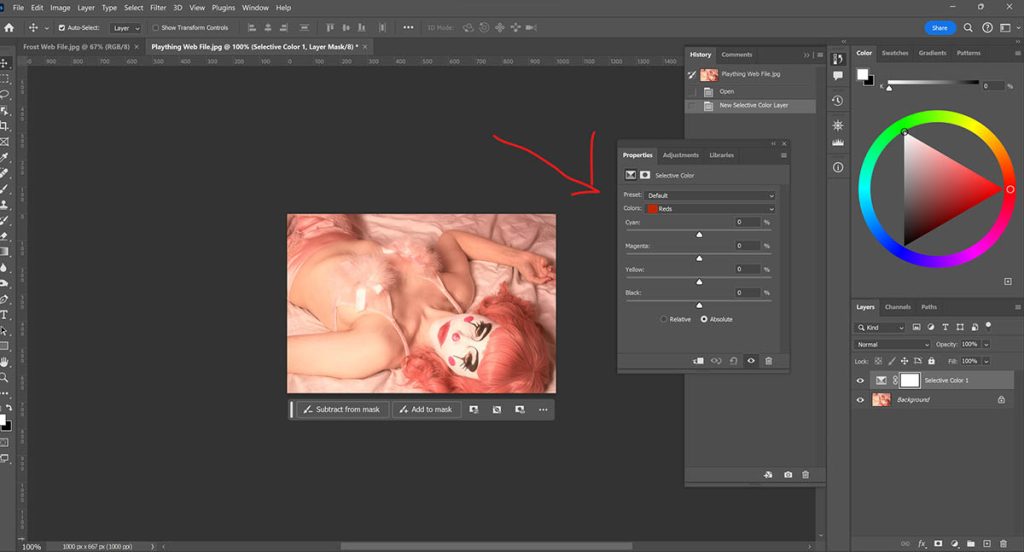
For example, I always use this for adjusting the skin colour in my self portraits.
My actual skin tone is quite orange/Mediterranean, but I love really white, porcelain-like skin.
Since skin is mostly made up of red and yellow tones, I can simply adjust those in Selective Colour, decreasing the percentage of blacks and yellows and adding a bit more cyan.
(I’ll explain further below how you can identify what colours you have to add or subtract).
Sidenote: Obviously, you don’t want to affect the whole image but only certain parts.
All the tools I share here are automatically applied in a new layer with a white layer mask.
Therefore, you can simply use the Brush tool set to black and mask out the areas you don’t want affected (make sure you select the white layer mask first).
2. Hue/Saturation Tool
The next tool I almost always use is the Hue/Saturation tool, see image:
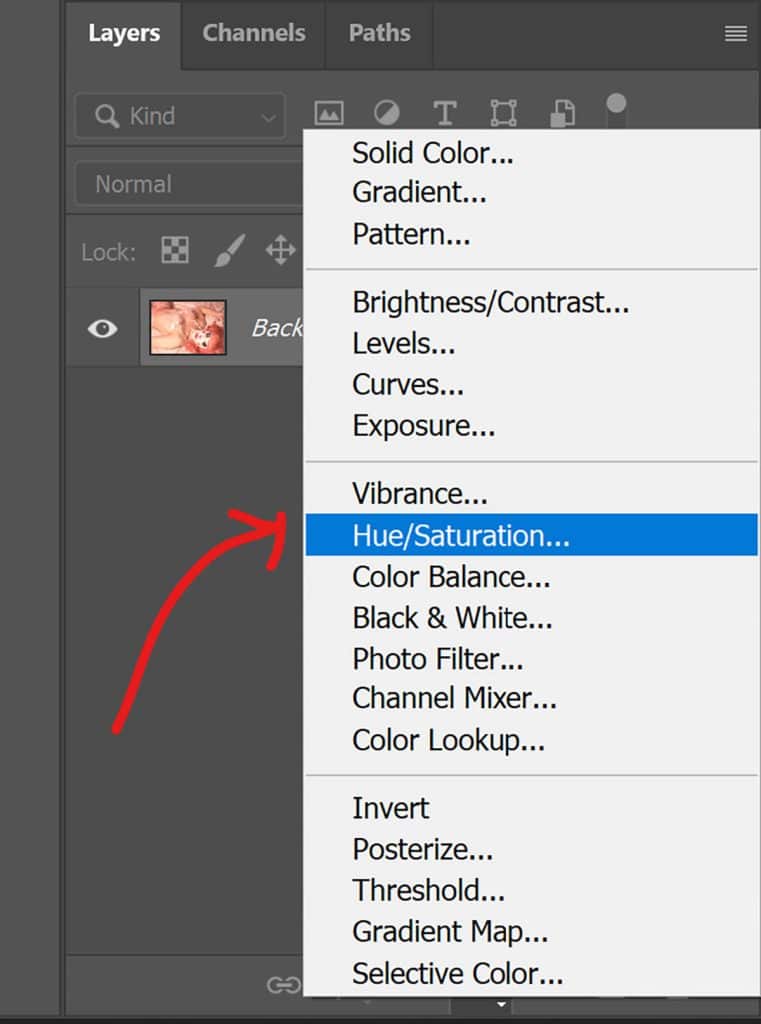
Again, you can change each colour individually, e.g. just reds or yellows, or the overall tones of the images (“Master”):
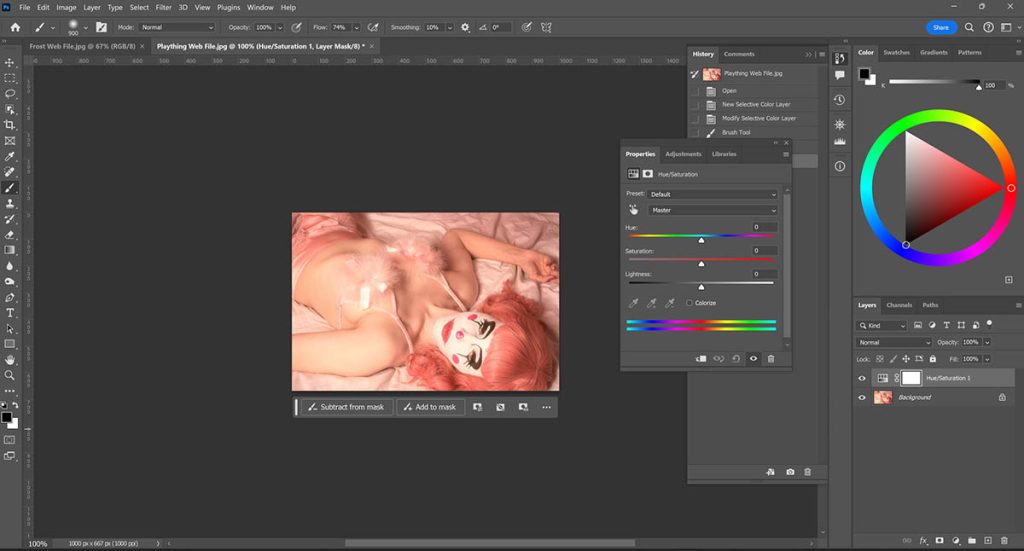
This tool is handy because it lets you control the saturation of each tone as well as the lightness.
Additionally, this tool has two very handy features. One is this little hand icon here:

I use this sometimes when I’m trying to change the colour of an object or a piece of clothing, for example, but I’m not sure what exact tone that item is.
If you click on the hand icon and then click on the part in the image you want to adjust, it will tell you what tonal range the item is in, e.g. reds, yellows or blues.
You may think this would be obvious, but sometimes it’s hard to identify, and this tool has helped me speed up my editing process on multiple occasions.
The second handy feature in the Hue/Saturation tool is the “Colorize” checkbox:

I use this option when I want to completely change the colour of something, for example my eye colour.
Simply activate the checkbox and then adjust the hue, saturation and lightness to your liking (and again, mask out areas you don’t want affected).
3. Color Lookup Tool
The next tool I use a lot for photo colour grading is Color Lookup:

Here, you can choose certain preset colour profiles, for example “Foggy Night” or “Fall Colors”:
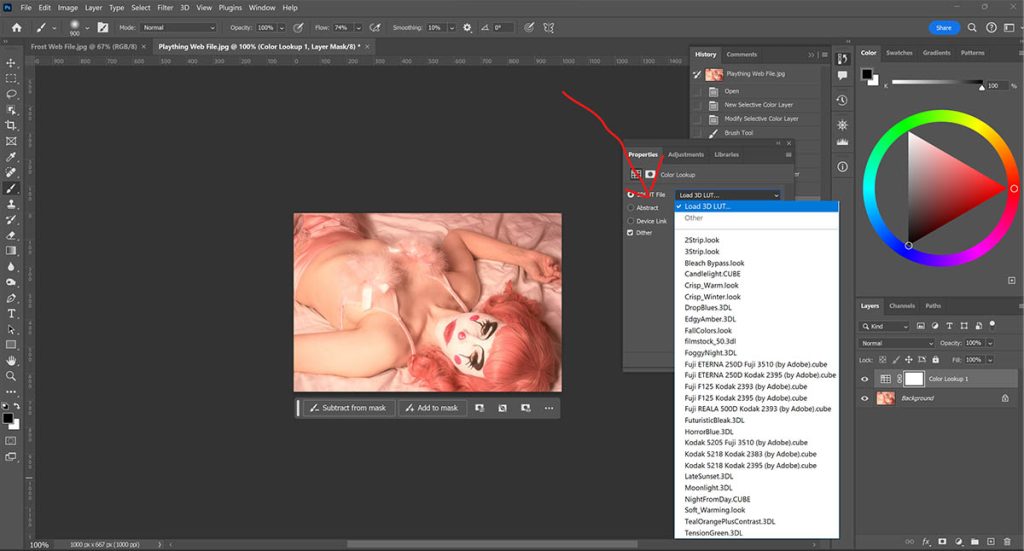
I use this tool to give my photo an overall aesthetic, and I usually combine several of the preset profiles.
This process involves a lot of trial and error, but I do love the results you get from the tool.
I always set the layer opacity to about 20% or lower so the effect isn’t too strong – it’s more like an overall colour tint.
4. Color Balance Tool
Sometimes, I also use the Color Balance tool, see below:
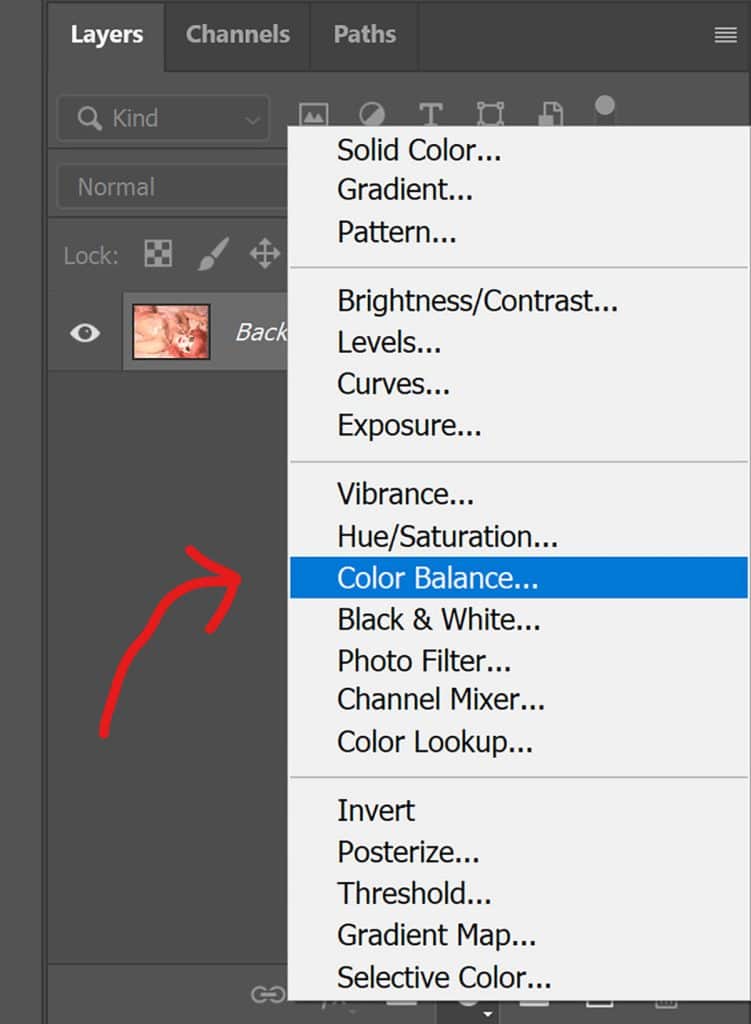
Here, you can adjust the colours of highlights, midtones or shadows:
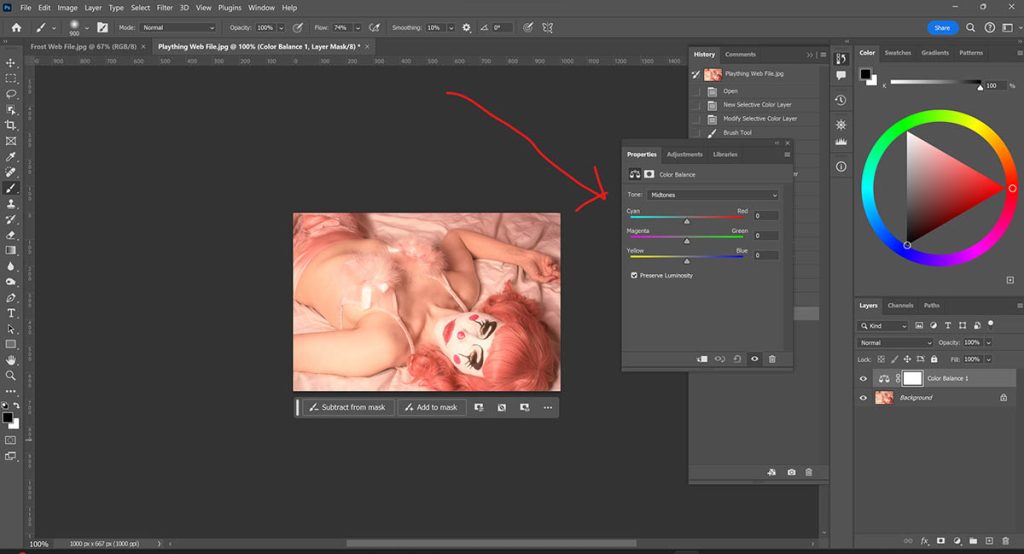
This is a wonderful tool for achieving an overall colour grade of your image.
For example, you could add more blue to the shadows and more yellow to the highlights for a cinematic “blockbuster” look.
5. Photo Filter Tool
This tool is very straightforward and super helpful for the very last touches of a photo or doing a quick colour correction:

You could apply a warming or cooling filter or choose an individual colour, like a red or blue filter:
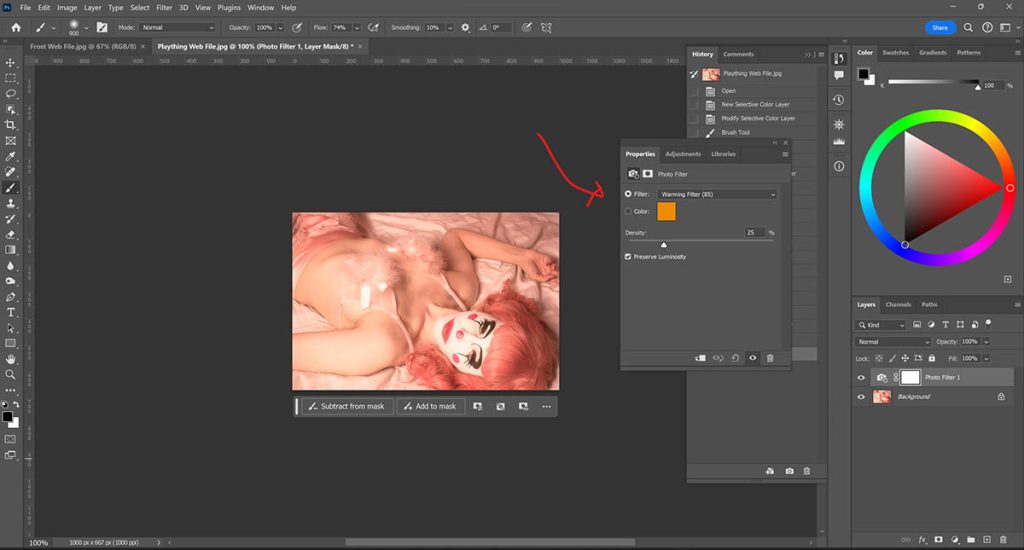
Once you applied the filter, you can lower the opacity of the layer to your liking.
I often use the Warming Filter for an overall look, as well as the Underwater filter at low opacity, which takes out some of the red and yellow in skin tones.
I promise to keep this blog completely ad-free so you can read without distractions. If you want to support my work, buy me a coffee: It’s a small gesture that makes a big difference!
Colour Theory: Which Tones to Adjust?
When I first started colour grading, I would often have the problem that I didn’t know how to achieve a certain effect because I wasn’t familiar with colour theory.
I then watched a lot of tutorials and also bought myself one of these colour wheels, which helped me to determine complimentary colours etc in an instant.
Generally, in Photoshop, colour adjustment tools work best when you think about colours in pairs:
RED = opposite of CYAN (light blue)
GREEN = opposite of MAGENTA
YELLOW = opposite of BLUE
So let’s say you find your image a bit too warm/yellow and want to shift the tones to a cooler range – you could then simply decrease the yellows and add more blues and cyans.
If you want a quick visual aid for this in Photoshop, go to “Window” – “Color” to display the Color panel. Then, go to the little hamburger menu at the top right, and choose “Color Wheel”. It will now look like this:
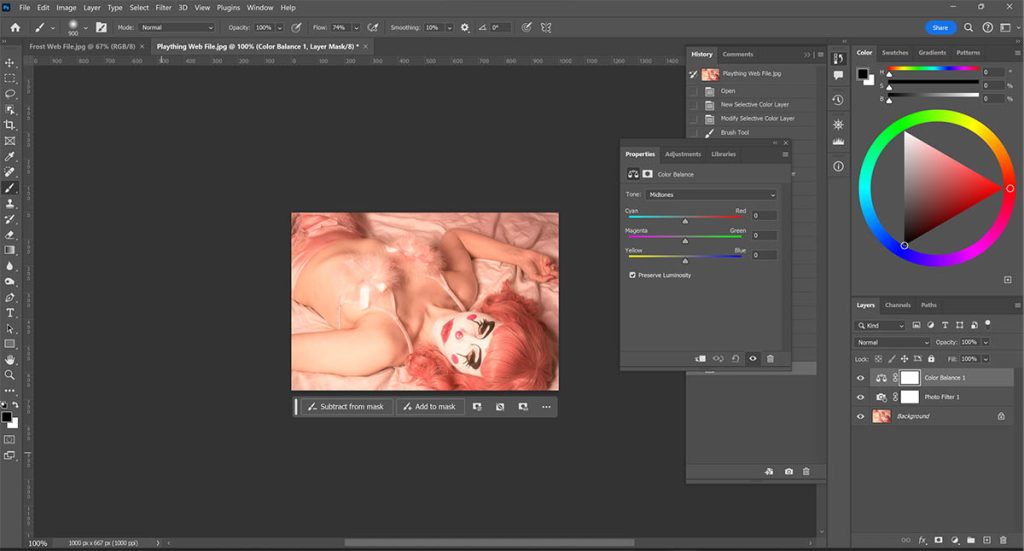
On the top right, you can see the actual colour wheel where you can quickly identify opposing colours – you can see, for example, that green lies opposite magenta.
So if you want to make your image less green, you can add a bit more of magenta, perhaps with a magenta photo filter.
Finally…What About Colour Space?
There is one last thing to think about when you’re colour grading, and that is colour space, which simply means the range of colours shown in a photo.
In digital photography, the two main colour spaces are sRGB and AdobeRGB.
sRGB stands for standard Red, Green and Blue.
Adobe RGB is a bigger colour space than sRGB and contains a lot more variations of colour tones.
The reason this matters is that if you want to print your photos or publish them online and haven’t adjusted the colour space, you may run into problems such as desaturated images and inaccurate colours.
I suggest the following workflow:
1) Edit in Adobe RGB colour space in Photoshop and save this master editing file as is.
Ideally, you use an Adobe RGB capable monitor so you can actually see the whole range of colours, but it’s not imperative.
2) If you want to publish your image online, make sure to create a copy of the master file and then convert this new web file to sRGB colour space.
You want to do this because most monitors in the world use sRGB colour space, and if you were to upload your file in Adobe RGB colour space (for example on Instagram), the colours would look desaturated.
This is because the monitor or phone screen can’t capture the full Adobe RGB colour gamut.
What About Printing?
If you’re serious about your photography and want to sell fine art photography prints, I would suggest you softproof your photos before sending them to your printing lab.
For example, I use The Print Space London for my giclee art prints, and they have print profiles for download on their website.
Why Use Print Profiles?
Basically, printers can only reproduce certain colours.
With print profiles, colours in your image that can’t be reproduced by the printer will be replaced with printable colours, and you can check if the result will still look the way you want (and then make edits to ensure it does).
Installing print profiles sounds complicated, but it really only takes five minutes to set up:
You simply download the right print profile for your PC or MAC and install it in Photoshop – you only have to do this once.
Now, every time you want to get a photo printed, you can go to “Edit” – “Convert to Profile” in Photoshop and choose the correct profile.
If your file looks different now, you can make adjustments and then send it off for printing in the knowledge that the colours in your print will look exactly the way you want them to 😊
And that’s it for today! Let me know in the comments if you found this post helpful!